
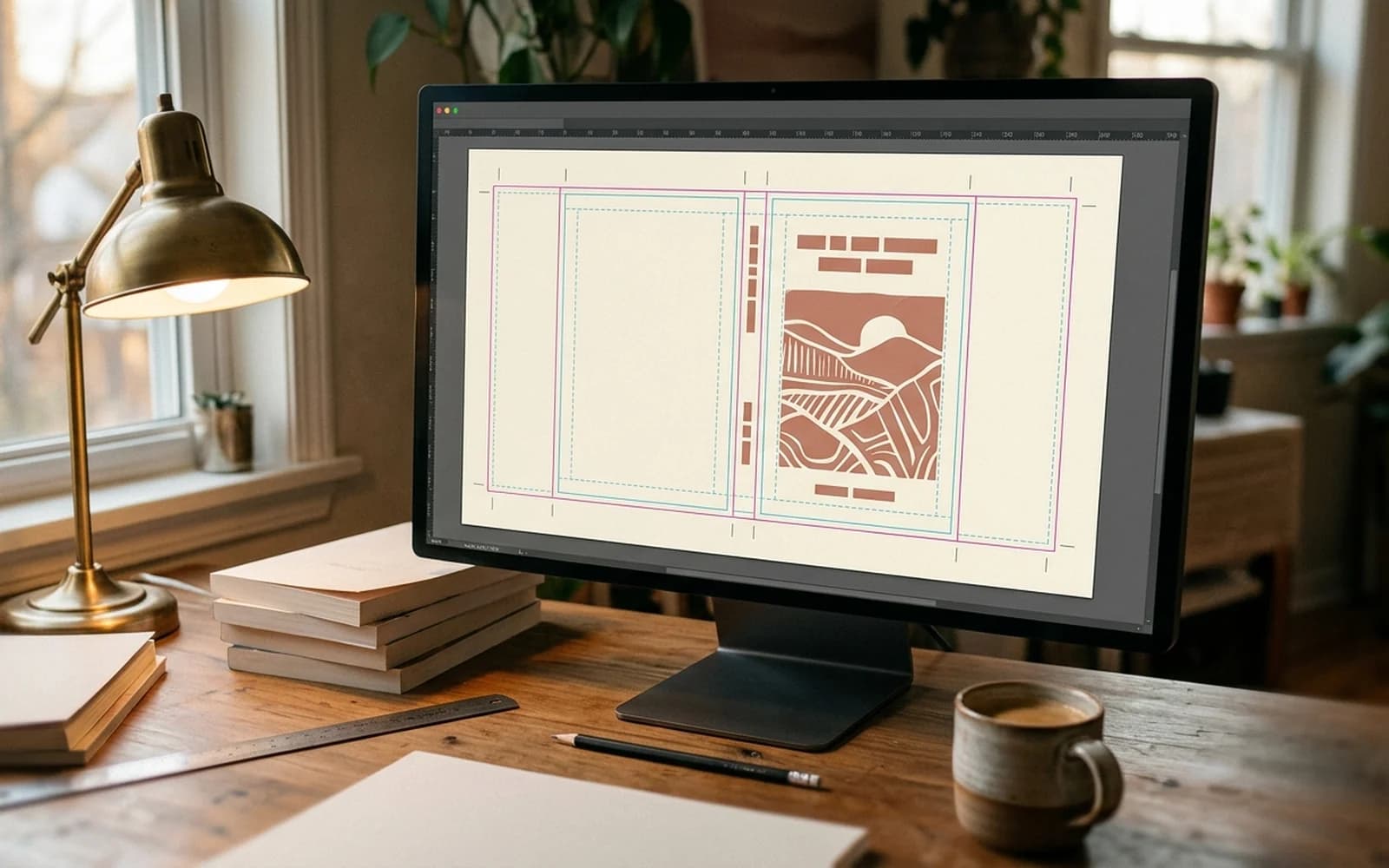
The 2026 KDP Cover Cheat Card
If you only read one screen on this page, read this one. Every number below is the current Amazon KDP requirement as of May 2026, verified against KDP Help and the live upload UI.
- • 300 DPI minimum
- • 0.125" bleed on all 4 outer edges
- • 0.5" safe margin from outer trim and spine
- • CMYK preferred, US Web Coated SWOP v2
- • PDF/X-1a:2001 format
- • 650 MB max file size
- • Embed all fonts, flatten all transparency
- • 300 DPI minimum
- • 0.591" (15 mm) wrap on all outer edges
- • 0.625" safe margin (extra for hinge wrap)
- • CMYK preferred
- • PDF/X-1a:2001 format
- • 650 MB max
- • Case-laminate only, no dust jackets yet
- • 1600 x 2560 px (1.6:1 ratio)
- • Minimum 1000 px on longest side
- • RGB (sRGB)
- • JPG or TIFF
- • 50 MB max
- • No transparency, no bleed
- • Front cover only
Print golden rule. Never type your full-wrap dimensions by hand. Run page count, paper, and trim through the KDP cover size calculator, copy the exact pixel values, and design at that canvas. Most rejections come from a misread of this one number.
1. Paperback Cover Specs
Paperback covers ship to KDP as a single full-wrap file containing back cover, spine, and front cover laid out left to right. Amazon prints on a Lightning Source class digital press, which is why the spec is built around tight bleed and a fixed barcode zone.
Full-wrap dimension formula
Width = (Trim Width x 2) + Spine Width + 0.25"
Height = Trim Height + 0.25"
The 0.25" total is 0.125" bleed x 2 outer edges. The KDP calculator returns this number, already including bleed.
Spine width formula
| Paper / interior | Per-page thickness | Spine width formula |
|---|---|---|
| White paper, B&W interior | 0.002252" | pages x 0.002252 |
| Cream paper, B&W interior | 0.0025" | pages x 0.0025 |
| White paper, color interior (standard) | 0.002252" | pages x 0.002252 |
| White paper, color interior (premium) | 0.002347" | pages x 0.002347 |
Amazon adds no allowance for the cover stock: the spine is simply page count times per-page thickness. Spine text must not appear at all on books under 80 pages (KDP prints it only on books with more than 79 pages): the spine is too narrow to bind text reliably.
Barcode area
Amazon prints a system-generated EAN-13 barcode in a fixed 2" wide x 1.2" tall rectangle on the lower right of the back cover. Anything inside this rectangle must be a solid light fill: white, cream, or light grey. No text, no faces, no busy pattern. If you want to suppress the printed barcode, supply your own ISBN with a pre-rendered barcode and select "Use my own ISBN" during setup.
Barcode safe zone
- • Position: lower right of back cover
- • Dimensions: 2" x 1.2"
- • Offset from trim: 0.25" from bottom, 0.375" from right
- • Background: solid white, cream, or light grey, no images
Need exact paperback dimensions in 10 seconds?
Drop in your trim size, page count, and paper. Get pixel-perfect width, height, and spine width plus an instant overlay file you can drop into Photoshop, Affinity, or InDesign.
2. Hardcover Cover Specs
KDP hardcover books are case-laminate: the cover artwork prints directly on the board, no separate dust jacket. The case wraps around three boards (front, back, spine) with a recessed hinge that requires more clearance than a paperback spine.
Case-laminate full-wrap math
Width = ((Trim Width + 0.197") x 2) + Spine Width + (2 x 0.591" wrap)
Height = Trim Height + 0.236" + (2 x 0.591" wrap)
Each board is the trim plus 0.197" x 0.236" (5 x 6 mm). The 0.591" (15 mm) wrap on every edge replaces the paperback bleed and covers the inside lip where the cover folds over the boards. That area still needs printable image, even though it disappears behind the end papers.
Hardcover spine width
Hardcover spine width uses the same per-page thickness as paperback but adds 0.189" (4.8 mm) of binding allowance for the case (a paperback adds nothing).
Hardcover spine = pages x (paper thickness) + 0.189"
Example: a 320-page white-paper B&W hardcover. 320 x 0.002252 + 0.189 = 0.910" spine width. KDP requires minimum 75 pages for hardcover.
Hinge clearance and end papers
- Hinge area: Keep important elements 0.625" away from the spine on both the front and back, not 0.5". The hinge crease distorts artwork in that strip.
- End papers: KDP currently prints plain white end papers. Custom end papers are not yet supported for self-publishers (as of May 2026).
- Barcode zone: Same 2" x 1.2" rectangle, same lower-right placement on back cover.
3. eBook Cover Specs
Kindle eBook covers are front-only, screen-only, and the spec is built around the smallest devices users still read on: 6-inch Kindle Paperwhite at 300 PPI. The "low quality" warning in the Kindle store is triggered automatically when your file is below 1600 pixels on the longest side.
Required specs
- • 1600 x 2560 px recommended
- • 1.6:1 height-to-width ratio
- • Minimum 1000 px longest side
- • RGB sRGB color space
- • JPG or TIFF only
- • Under 50 MB
- • 72 DPI is fine (it is screen-only)
Common pixel sizes by intent
- • 1600 x 2560: Amazon-recommended, future-proof
- • 2500 x 4000: high-resolution archive master
- • 1410 x 2250: KDP Print Replica minimum
- • 1000 x 1600: hard minimum, will trigger low-quality flag
Thumbnail test. Resize your final 1600 x 2560 to 200 x 320 in your image editor and look at it next to your competitors in the same browser tab. If your title is illegible or your image is muddy at that scale, your cover will lose impressions in the Kindle store. The thumbnail is the actual unit of competition.
4. Resolution Requirements
Resolution is measured in DPI (dots per inch) for print and PPI (pixels per inch) for screens. The vocabulary differs but the math is the same: pixels per inch of physical output. KDP enforces 300 DPI as a hard floor on print, and the rejection rate for DPI is high enough to make it the second-biggest cause of "needs work" emails.
Minimum total pixels by trim size
| Trim size | Full-wrap inches (200pg) | Required pixels @ 300 DPI |
|---|---|---|
| 5 x 8" | 10.7 x 8.25" | 3210 x 2475 |
| 5.5 x 8.5" | 11.7 x 8.75" | 3510 x 2625 |
| 6 x 9" | 12.70 x 9.25" | 3810 x 2775 |
| 7 x 10" | 14.70 x 10.25" | 4410 x 3075 |
| 8 x 10" | 16.70 x 10.25" | 5010 x 3075 |
| 8.5 x 11" | 17.70 x 11.25" | 5310 x 3375 |
Pixel values assume a 200-page white-paper B&W book. Add roughly 68 pixels to the width per additional 100 pages for the same trim.
Why upscaling does not work
Resampling a 72 DPI screenshot to 300 DPI in Photoshop tells the file it is now high-resolution, but the underlying pixels are still low-resolution. Print presses look at actual pixel density, not the metadata, and you will get visible jaggies and soft edges on the press sheet. AI upscalers like Topaz Gigapixel can salvage borderline cases (700-900 px) but cannot rescue genuine 72 DPI work.
Hard rule: set 300 DPI as the document property before placing any image. Build the entire file at native print resolution from the first pixel.
5. Color Requirements
KDP technically accepts both RGB and CMYK for print, but the press itself is CMYK. If you submit RGB, Amazon converts your file at print time using a generic ICC profile and bright RGB-only colors shift noticeably. Designing in CMYK from the start gives you control over the conversion.
Print (paperback + hardcover)
- • CMYK with US Web Coated SWOP v2 (preferred)
- • RGB sRGB accepted, converted at print
- • Avoid pure 100% neon greens, electric blues, fluorescent oranges
- • Black for text: C 0 / M 0 / Y 0 / K 100, never four-color rich black for body text
- • Rich black for large areas: C 60 / M 40 / Y 40 / K 100
eBook (Kindle)
- • RGB only (sRGB IEC61966-2.1)
- • Bright saturated colors render fine, screens are not paper
- • Test on a black-and-white E-Ink Kindle: yellows and pale blues vanish on greyscale
- • Avoid pure black backgrounds, they look heavy on backlit screens
ICC profile guidance
The KDP color-managed workflow expects US Web Coated SWOP v2 for CMYK and sRGB IEC61966-2.1 for RGB. Embedding the profile in your file means the press uses your conversion intent instead of Amazon's default. To embed:
- Photoshop: Edit, Convert to Profile, US Web Coated (SWOP) v2, tick "Embed Color Profile" in Save As.
- Affinity Photo: Document, Convert Format / ICC Profile, pick SWOP v2, export as PDF/X-1a with "Embed ICC profile" checked.
- InDesign: File, Export, PDF/X-1a:2001 preset, Output tab, Destination "Document CMYK," Profile Inclusion Policy "Include All Profiles."
6. File Format Requirements
KDP accepts more formats than you should actually use. For each surface there is one format that minimizes re-processing and one that maximizes it. Pick the first.
PDF/X-1a:2001 (print, recommended)
The ISO 15930-1 print-ready PDF subset. Forces flattened transparency, embedded fonts, locked CMYK color space, and no live JavaScript or interactivity. KDP ingests it without rasterizing.
File size: typical 8 to 50 MB. Maximum 650 MB.
Standard PDF (print, fallback)
Works if exported with "press quality" settings, flattened transparency, and all fonts embedded. KDP may re-render some effects so colors can shift slightly.
JPG (eBook, recommended)
The Kindle store's native format. Export at 90 to 95% quality, sRGB, no embedded thumbnail.
File size: typical 1 to 5 MB. Maximum 50 MB.
TIFF (eBook, alternative)
Lossless. Use only if your cover has very fine gradients that JPG noticeably degrades. Most readers will never see the difference at thumbnail size.
PNG, GIF, BMP (avoid)
PNG works for eBook but Amazon re-encodes it as JPG on the back end with no control over quality. GIF and BMP are not supported on the print side at all.
PDF/X-1a export checklist
- • All fonts embedded (no system substitution at print)
- • All transparency flattened
- • Color space converted to CMYK with SWOP v2 embedded
- • No spot colors, no Pantone references
- • Bleed box set to exactly 0.125" beyond trim on all sides
- • No crop marks, no registration marks (KDP rejects them)
7. The 9 Most Common Rejection Reasons (and Fixes)
Every rejection email cites a specific reason. Here are the nine you will actually hit, in order of frequency, with the exact fix for each.
Wrong full-wrap dimensions
Why it happens. Designer used the trim size for a different page count, or added bleed on top of an already-bled calculator value.
Fix. Re-run the KDP cover calculator with your final page count. Resize the canvas to match exactly, do not stretch artwork. Re-export.
Below 300 DPI
Why it happens. File built at 72 or 150 DPI, or AI-generated artwork that was 1024 x 1024 pixels stretched across a 6 x 9 cover.
Fix. Rebuild the canvas at 300 DPI native. If artwork is too small, upscale through Topaz Gigapixel AI or regenerate at higher resolution. Never use Photoshop's native resample-up for a cover.
Missing bleed
Why it happens. Cover built at trim size with no bleed area, so background ends exactly at the cut line.
Fix. Extend background imagery 0.125" past every outer edge. Inner spine edges do not need bleed because they meet the front and back panels.
Critical content in the safe margin
Why it happens. Author name, subtitle, or face placed within 0.5" of trim edge. Cutter tolerance is plus or minus 0.0625" so an extreme cut chops the element.
Fix. Move all text and faces at least 0.5" in from every trim edge and 0.625" away from the spine. Test by hiding the bleed and the safe-margin strip in your editor.
Spine text on a thin spine
Why it happens. Books under 100 pages do not have a wide enough spine for legible text, but designer added title anyway.
Fix. Remove spine text for books under 100 pages. Use a clean color or single graphic mark instead.
Artwork inside the barcode zone
Why it happens. Back cover illustration extends into the lower right 2" x 1.2" rectangle where Amazon will overprint the barcode.
Fix. Place a solid white rectangle 2.2" x 1.4" (a touch larger for safety) in the lower right of the back cover. Keep all artwork outside that zone.
Fonts not embedded
Why it happens. Exported as standard PDF without "Embed all fonts" checked, or used a font with restricted embedding flags.
Fix. Re-export as PDF/X-1a:2001, which forces embedding. If a font flat refuses to embed, outline it: select all text, convert to curves, re-export.
RGB-only file with neon colors
Why it happens. Designed in RGB sRGB with bright lime green or electric blue accents. CMYK press cannot hit those gamuts so colors shift to muddy olive or grey-blue.
Fix. Convert document to CMYK SWOP v2 in Photoshop or Affinity and soft-proof. Adjust accents that fall outside CMYK gamut: pull saturation down 5 to 10% or shift hue.
eBook below 1000 pixels longest side
Why it happens. Used a thumbnail-sized image, or exported a Canva preview at default 1080 x 1080 instead of full quality.
Fix. Re-export at 1600 x 2560 px. In Canva: download as PNG/JPG with "high resolution" toggle on, or upgrade to Canva Pro for direct 1600 x 2560 export.
Resubmit fast. KDP does not penalize rejections. Fix the cited issue, re-export, re-upload, and re-review usually clears within 12 to 24 hours on weekdays.
For deep-dive fixes on low-resolution and pixelated covers, see our companion guide on fixing blurry KDP covers.
8. Step-by-Step Upload Walkthrough
Below is the exact click path through the KDP dashboard. The UI has been stable since the December 2024 redesign.
- 1
Open KDP Bookshelf
Sign in to kdp.amazon.com and click Bookshelf in the top nav. You will see your titles listed with status pills (Draft, In Review, Live).
- 2
Open the right content editor
Click the three-dot menu next to your title. Pick "Edit paperback content," "Edit hardcover content," or "Edit eBook details" depending on format. Each surface is a separate cover upload.
- 3
Scroll to the Book Cover panel
On print formats you will see a choice: "Use Cover Creator" or "Upload a cover you already have (PDF/JPG/TIFF)." Pick the upload option for any commercial cover.
- 4
Drag in your final file
A drop zone appears. Drag your PDF/X-1a (for print) or JPG (for eBook). KDP shows an upload progress bar then a green checkmark when the file parses successfully. Parse failures usually mean the file is over the size cap or uses an unsupported format.
- 5
Launch the Print Previewer
On print formats, click "Launch Previewer." KDP renders your full-wrap cover over your interior pages with bleed lines and trim guides drawn on top. Scrub every page, check that spine text is centered, and confirm the barcode zone is clear.
- 6
Approve and save
Click Approve in the previewer, then Save and Continue at the bottom of the editor. Cover status changes to "Submitted for review."
- 7
Wait for the review email
KDP emails you within 12 to 72 hours. If approved, the title is live. If rejected, the email names the specific issue. Fix and re-upload, no penalty.
9. KDP Validation Tools You Should Run
Amazon ships two validators inside the KDP dashboard. Both are free, both run in the browser, and skipping them is the single biggest correlate of cover rejection.
Cover Creator (template tool)
Free in-browser template tool. Good for low-content books and quick utility titles. Limited fonts, fixed layouts, watermark-flavor stock photography. Not for commercial fiction launches.
Print Previewer
Renders your final full-wrap PDF over your interior with bleed and trim guides drawn on top. Available on the Content tab once your cover and interior are uploaded. The single most useful pre-flight tool Amazon offers.
For pre-upload validation outside Amazon, use Adobe Acrobat Pro's Preflight (search "PDF/X-1a:2001 verification") or the free PDF/X-1a validator on verapdf.org. Both will flag font embedding and color profile issues before you ever hit KDP.
10. Master Spec Table
Every requirement on this page in a single sortable reference. Bookmark or screenshot this table.
| Spec | Paperback | Hardcover | eBook |
|---|---|---|---|
| Format | Full-wrap (front + spine + back) | Full-wrap + wrap allowance | Front cover only |
| File type | PDF/X-1a:2001 (preferred) | PDF/X-1a:2001 (preferred) | JPG (preferred), TIFF |
| Max file size | 650 MB | 650 MB | 50 MB |
| Resolution | 300 DPI minimum | 300 DPI minimum | No DPI requirement (pixel-based) |
| Recommended pixels | Calculator output x 300 DPI | Calculator output x 300 DPI | 1600 x 2560 |
| Minimum pixels (longest side) | 300 DPI of calculator value | 300 DPI of calculator value | 1000 px |
| Ratio | Calculator (varies) | Calculator (varies) | 1.6:1 (height to width) |
| Color mode | CMYK preferred, RGB accepted | CMYK preferred | RGB sRGB |
| ICC profile | US Web Coated SWOP v2 | US Web Coated SWOP v2 | sRGB IEC61966-2.1 |
| Bleed | 0.125" all outer edges | 0.591" (15 mm) wrap, all outer edges | None |
| Safe margin | 0.5" from trim, 0.5" from spine | 0.625" from trim, 0.625" from spine | None |
| Barcode zone | 2" x 1.2" lower right back | 2" x 1.2" lower right back | N/A |
| Fonts | All embedded | All embedded | Rasterized |
| Transparency | Flattened | Flattened | No alpha channel |
| Page count minimum | 24 pages | 75 pages | 6 ink pages |
| Page count maximum | 828 (white, premium color) / 776 (cream) / 600 (standard color) | 550 | No limit |
Frequently Asked Questions
The questions Amazon search and Google search ask about KDP cover requirements every month, answered with the actual 2026 spec.
What are the 2026 KDP cover requirements in one sentence?
For paperback and hardcover: a single full-wrap file at 300 DPI with 0.125 inch bleed on all four outer edges (a 0.591 inch wrap on hardcover), exact dimensions from the KDP cover calculator, CMYK preferred, exported as PDF/X-1a:2001 under 650 MB with all fonts embedded. For eBook: a single front-cover image at 1600 by 2560 pixels (1.6:1 ratio), under 50 MB, JPG or TIFF, RGB color.
What size should my KDP eBook cover image be in 2025/2026?
Amazon recommends 2560 pixels on the longest side and a 1.6:1 height-to-width ratio, so the ideal size is 1600 by 2560 pixels. Minimum accepted is 1000 pixels on the longest side, but Amazon flags anything under 1600 by 2560 as "low quality" in the Kindle store. Save as JPG or TIFF, RGB color, under 50 MB.
What DPI does KDP require for print covers?
KDP requires a minimum of 300 DPI for print paperback and hardcover covers. This is non-negotiable. 300 DPI must be the native resolution of the file: upscaling a 72 DPI screenshot to 300 DPI in software does not produce a printable file because the underlying pixels are still low-resolution.
What is the KDP spine width formula?
For black-and-white paperback: white paper uses page count multiplied by 0.002252 inches, with no cover-stock allowance added. Cream paper uses page count multiplied by 0.0025 inches. Color paperback uses page count multiplied by 0.002252 inches for standard color or 0.002347 inches for premium. Hardcover case-laminate adds 0.189 inches (4.8 mm) to the spine for the case. Always run a final number through the KDP cover calculator before exporting.
Does KDP accept RGB covers or do I need CMYK?
KDP accepts both RGB and CMYK for print, but CMYK with the US Web Coated SWOP v2 ICC profile is preferred for predictable color reproduction. If you submit RGB, Amazon converts to CMYK at print time and bright neon greens, electric blues, and pure reds tend to shift the most. For eBook covers, use RGB sRGB.
What file format is best for KDP paperback and hardcover?
PDF/X-1a:2001 is the format printers prefer and Amazon accepts it without re-processing. It flattens transparency, embeds all fonts, locks the color space, and ships a single rasterized file the press can image directly. Standard PDF works but may be re-processed. JPG and TIFF are accepted for print but should be a last resort because they cannot embed vector text crisply.
What is the maximum file size for a KDP cover?
Print paperback and hardcover covers can be up to 650 MB. eBook cover images must be under 50 MB. In practice, a well-exported PDF/X-1a print cover sits between 8 MB and 50 MB, and an optimized eBook JPG sits between 1 MB and 5 MB.
Do I need to add bleed to a KDP cover?
Yes for paperback and hardcover. Bleed is 0.125 inches on all four outer edges of a paperback full-wrap file; a hardcover file wraps 0.591 inches (15 mm) around every edge instead. The KDP cover calculator already includes bleed in the dimensions it gives you, so you do not add it on top, you fill it. eBook covers do not use bleed because they are screen-only.
Where do I have to leave clear space for the barcode?
KDP places a system-generated barcode in a 2 inch wide by 1.2 inch tall area in the lower right corner of the back cover for paperback and hardcover. Anywhere within that rectangle must be a solid light color, free of artwork, text, or busy patterns. If you want to suppress the printed barcode, you must supply your own ISBN and request "Use my own ISBN with no barcode" during setup.
Do KDP cover requirements differ for AI-generated covers in 2026?
Technical requirements are identical: same dimensions, DPI, color, format, and bleed. The difference is policy. Under KDP's AI content disclosure policy, you must declare if your cover image is AI-generated when you submit. You retain commercial rights as long as you used a tool whose terms grant commercial use (KDPEasy, Midjourney Pro, DALL-E paid plans, Adobe Firefly Commercial) and the cover does not infringe a protected style.
What is the KDP "Cover Creator" and should I use it?
Cover Creator is KDP's in-browser template tool. It is fine for low-content books and quick utility titles, but it has limited fonts, fixed layouts, and watermark-style stock photography that mark a cover as amateur in competitive genres. For fiction, illustrated children's books, and any commercial launch, upload your own full-wrap file.
My cover got rejected. How fast can I fix it and resubmit?
Most rejections cite one issue: wrong dimensions, low DPI, missing bleed, an element inside the barcode zone, or unembedded fonts. Fix the specific issue, re-export, and re-upload. Re-review usually clears within 12 to 24 hours on a weekday. There is no penalty or rate limit for resubmissions, but each round delays publication by a day.
Are KDP cover specs the same for paperback and hardcover?
No. Paperback and hardcover use different spine-width formulas (hardcover adds 0.189 inches for the case), different total dimensions for the same trim size, and hardcover supports end-paper printing as a separate file. The barcode zone, DPI, color, and file format requirements are identical between the two; a hardcover replaces the 0.125 inch bleed with a 0.591 inch wrap.