
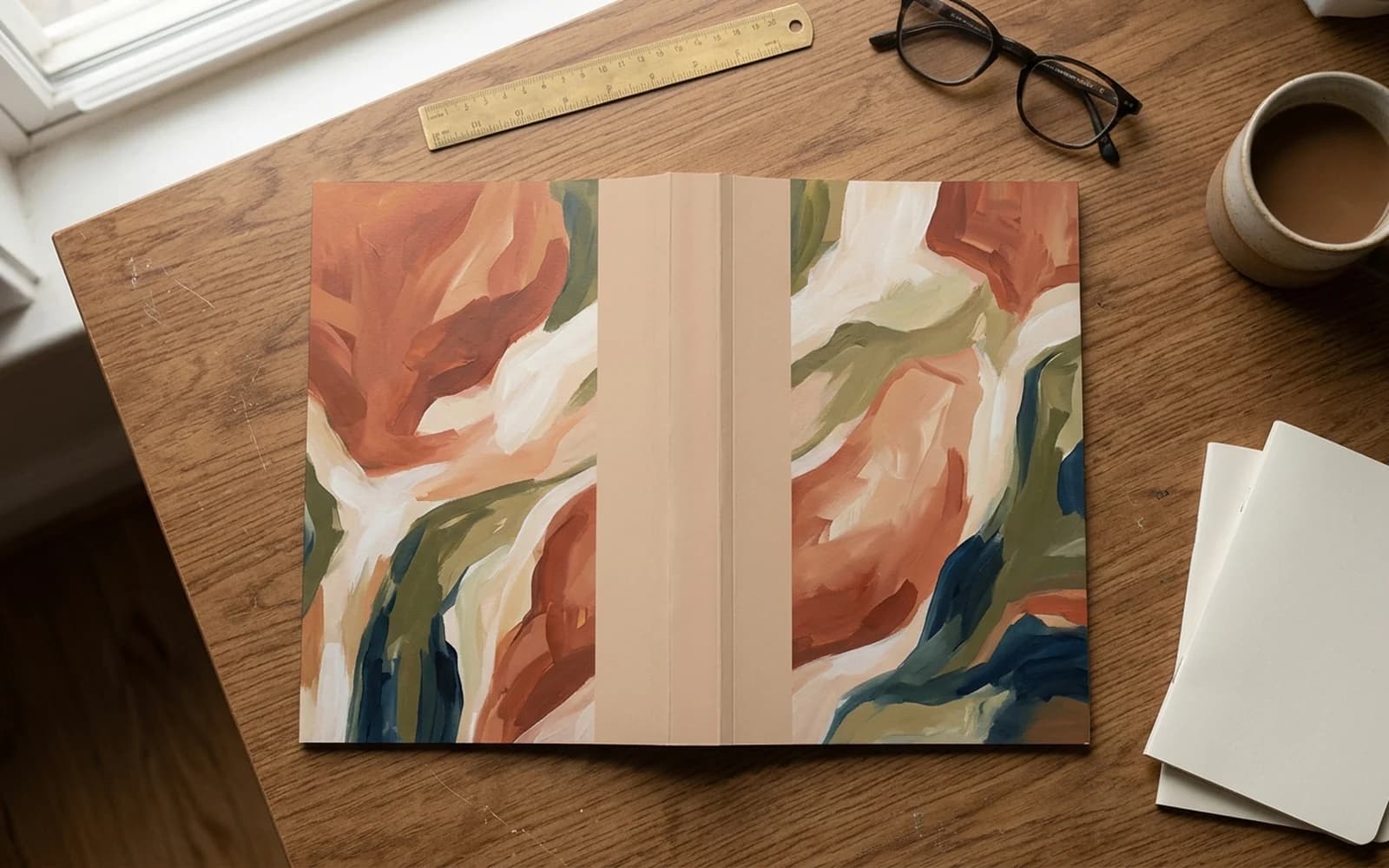
What a full wrap cover actually is
A KDP full wrap cover (also called a wraparound cover or print cover PDF) is the single, continuous artwork file Amazon KDP requires for paperback and hardcover books. Unlike a Kindle eBook (where you only upload a front-cover image), a print book's cover has to wrap around the entire spine of the physical book. The file contains three panels stitched into one PDF:
- Back cover on the left (book blurb, author bio, barcode reserve area)
- Spine in the middle (title and author, if 80+ pages)
- Front cover on the right (the part shoppers see on Amazon)
The width of the spine, and therefore the total width of the file, depends entirely on your page count and paper type. That is the part that breaks 90% of first-time uploads: people design at the wrong width, the spine text drifts onto the front or back, and KDP rejects the file.
The one-line rule
Calculate your spine width first, design second. Every full wrap rejection traces back to a wrong spine width or missing bleed.
The anatomy of a full wrap
Read your full wrap PDF left to right when it is laid flat. Each region has a different job, a different safe zone, and a different reason it gets flagged.
Schematic only. Actual spine width scales with page count and paper type.
Back cover
- Book blurb (150 to 250 words)
- Author photo and bio (optional)
- Endorsement or review quote
- Barcode reserve (bottom-right)
Spine
- Title (top to bottom)
- Author name
- Logo or imprint (optional)
- Blank if under 80 pages
Front cover
- Title (large, readable at thumbnail)
- Author name
- Subtitle or tagline (optional)
- Hero artwork
The whole file is surrounded by 0.125" of bleed on every outer edge. Bleed is extra artwork that gets trimmed off during printing. That is why the file dimensions are slightly larger than the finished book.
Calculating total wrap dimensions (paperback)
Three numbers determine the whole canvas: trim width, trim height, and spine width.
Total Width = (2 x Trim Width) + Spine Width + (2 x 0.125" bleed)
Total Height = Trim Height + (2 x 0.125" bleed)
The two bleed values total 0.25" on each axis. They sit on the outer edges of the back, front, top, and bottom (never the spine).
Worked example: 6 x 9 paperback, 100 pages, white paper
- Spine width = 100 x 0.002252 = 0.2252"
- Total width = (2 x 6) + 0.2252 + 0.25 = 12.4752"
- Total height = 9 + 0.25 = 9.25"
That is the canvas you set up in your design tool. Round to four decimal places. KDP's tolerance is tiny and rounding 0.2252" to 0.23" can drift spine text onto the front panel.
Do not round your spine
Rounding 0.2252" to 0.23" shifts the spine by 0.0048", small enough that you will never see it on screen but big enough that printed text can drift onto the front cover. Always carry the full decimal through.
Hardcover full wrap math
Hardcover full wraps follow the same logic as paperbacks but differ in two important ways. Each board is the trim plus 0.197" wide and 0.236" tall (5 x 6 mm), and the spine adds 0.189" (4.8 mm) for the rigid case. Get this wrong and your hardcover will look like it is missing half its case wrap.
Hardcover Total Width = (2 x (Trim Width + 0.197")) + Spine Width + (2 x 0.591" wrap)
Hardcover Total Height = Trim Height + 0.236" + (2 x 0.591" wrap)
Hardcover Spine = (pages x paper thickness) + 0.189" (4.8 mm)
A 0.394" (10 mm) hinge runs down each board beside the spine; keep type off it. The 0.591" (15 mm) wrap is the case-laminate turn-in that folds around the boards inside the cover.
| Spec | Paperback | Hardcover (case laminate) |
|---|---|---|
| Spine formula | pages x paper | (pages x paper) + 0.189" (4.8 mm) |
| Outer wrap allowance | 0.125" bleed each side | 0.591" (15 mm) case wrap each side |
| Minimum pages | 24 | 75 |
| Spine text minimum | 80 pages | 80 pages |
| Total file width vs book | ~0.25" larger | ~1.2" larger (15 mm wrap per side) |
The hardcover case wrap is the extra material that folds around the rigid boards on the inside of the cover. It is why the file is so much larger. Always download KDP's exact hardcover template before designing. Eyeballing it never works.
The spine width formula
Multiply your interior page count by the paper thickness. A paperback adds nothing for the cover; a hardcover adds 0.189" (4.8 mm) for the case.
White paper paperback: Spine = pages x 0.002252"
Cream paper paperback: Spine = pages x 0.0025"
Std color paperback: Spine = pages x 0.002252"
Premium color paperback: Spine = pages x 0.002347"
Hardcover: Spine = (pages x paper thickness) + 0.189"
Need a value for an exact page count? Use our free KDP Spine Width Calculator or the all-in-one KDP Cover Size Calculator that returns spine width, total cover dimensions, and bleed in one click.
Trim-size lookup table
Full-wrap dimensions for the most common KDP trim sizes at 100 and 300 pages on white paper. Spine widths use the white-paper formula above.
| Trim size | 100 pages | 300 pages | ||
|---|---|---|---|---|
| Spine | Full wrap | Spine | Full wrap | |
| 5 x 8 | 0.225" | 10.475" x 8.25" | 0.676" | 10.926" x 8.25" |
| 5.5 x 8.5 | 0.225" | 11.475" x 8.75" | 0.676" | 11.926" x 8.75" |
| 6 x 9 | 0.225" | 12.475" x 9.25" | 0.676" | 12.926" x 9.25" |
| 7 x 10 | 0.225" | 14.475" x 10.25" | 0.676" | 14.926" x 10.25" |
| 8.5 x 11 | 0.225" | 17.475" x 11.25" | 0.676" | 17.926" x 11.25" |
All values assume white paper at 0.002252" per page. Switch to cream (0.0025") or premium color (0.002347") and your spine width changes. The KDP Cover Size Calculator computes any combination instantly.
What goes on the back cover
The back panel is where buyers decide whether to flip to the spine and check the price. Six elements fight for that real estate:
Book description (the blurb)
Roughly 150 to 250 words. Hook in the first line, raise the stakes, then close with a promise. Set in the back-cover safe zone, never spilling into bleed.
Author photo and short bio
Optional but converts. A circular or square portrait around 1.2" wide, plus 30 to 60 words of credentials. Usually placed lower-left.
Review quote or endorsement
One short pull quote (12 to 20 words) attributed to a publication, peer author, or notable reviewer. Italicize and offset visually from the blurb.
ISBN barcode reserve area
A 2 x 1.2 inch clean white or light rectangle in the bottom-right of the back, about 0.25" from the trim edges. KDP overprints the barcode there automatically.
Publisher logo or imprint
Small mark (under 0.5" tall) near the barcode. Optional if you self-publish without a registered imprint.
Category line and URL
A single line like FICTION / THRILLER and an optional author website. Sits along the bottom edge, just inside the safe zone.
What goes on the spine
The spine is the bookshop browse view. It is what a reader sees when your book is filed between two others. Two rules govern everything else:
- Spine text only if 80+ pages, on any paper (KDP prints spine text only on books with more than 79 pages). Below that threshold the spine is too narrow to print legibly and KDP requires it to stay blank. Keep spine text 0.0625" clear of each spine edge.
- Orientation in the US, UK, and Canada is top-to-bottom: rotate the text 90 degrees clockwise so it reads down the spine when the book is right-side up on a shelf. European convention flips this. Stick to top-to-bottom for KDP.
The spine stack
From the top of the spine downward:
- Title, usually 60% to 70% of the spine length, in your largest legible point size (typically 8 to 14 pt depending on spine width).
- Subtitle or tagline (optional), smaller and lighter.
- Author name, near the bottom third, smaller than the title.
- Logo or imprint mark at the very bottom, usually under 0.4" tall.
Center spine text on the spine width
Lay out spine text horizontally first, then rotate the entire layer 90 degrees and center it on the spine's middle line. Keep all glyphs at least 0.0625" clear of both spine edges.
Common full wrap mistakes
Almost every rejection falls into one of these six buckets. Check yours against this list before uploading:
Text in the fold (spine) zone
Anything within 0.0625" of the spine edge can wrap onto the front or back during binding. Move all spine text 0.0625" deeper toward the spine center.
Wrong spine width
The #1 cause of rejection. Recalculate with the exact paper type and page count, carry the full decimal through, and never round to two decimals.
Color mismatch front to back
Background sampled differently across panels makes the spine look pasted on. Either run one continuous composition across all three panels or use a single sampled solid.
Low-DPI back panel
Authors often spend hours on the front then drop a 72 DPI stock photo on the back. KDP flags any panel under 300 DPI at print size.
Forgetting the barcode reserve
KDP overprints its EAN barcode regardless of what you supply. Reserve the 2 x 1.2 inch bottom-right rectangle or your art will be obscured.
Bleed forgotten on outer edges
No bleed = thin white slivers along the trim after binding. Extend background art 0.125" past every outer edge of the canvas.
Photoshop / Affinity / Canva walkthrough
The same six steps apply to every design tool. Only the menu names change:
Lock specs first
Decide trim size, page count, and paper type. Calculate spine width to four decimals. Calculate total width and height. Open your design tool only after these are written down.
Photoshop or Affinity Photo
New document at total width x total height in inches, 300 DPI, RGB. Add ruler guides at 0.125" (back trim), back trim + trim width (spine left), back trim + trim width + spine (spine right), and total width - 0.125" (front trim). Add horizontal guides 0.125" from top and bottom.
InDesign or Affinity Publisher
New document with the same total dimensions, but check "Facing pages off" and add a 0.125" bleed in document setup. Use the Layout > Margins and Columns dialog to add safe-zone margins of 0.125".
Canva Pro
Custom size document at total inches. Disable margin guides, then drag a vertical line at each spine edge. Export as "PDF Print" with crop marks OFF and bleed enabled. Free Canva cannot guarantee 300 DPI at this size, so Pro is required.
Design back to front
Build the back blurb first (it constrains your color palette), then the spine, then the front. Designing front-first locks you into colors that may not work for the back, forcing rework.
Export and verify
Export PDF at 300 DPI with fonts embedded, no transparency, no password. Open the PDF in Acrobat or Preview, measure the document size, and confirm it matches your calculated total to four decimals.
The KDPEasy way
Every step above can be replaced by typing your trim size and page count into KDPEasy and clicking Generate.
Skip the math entirely
- Spine width, bleed, and safe zones auto-calculated from trim and page count.
- Front, spine, and back templates generated with KDP-compliant guides baked in.
- Single print-ready PDF export at 300 DPI with fonts embedded.
- Built-in barcode reserve area on the back cover.
- Hardcover and paperback modes with the correct wrap math for each.
Frequently asked questions
What is a full wrap cover on Amazon KDP?+
What are the dimensions of a KDP full wrap cover?+
Do I need a full wrap cover for a Kindle eBook?+
What file format does KDP accept for full wrap covers?+
How is a full wrap cover different from a regular eBook cover?+
Can I add text to the spine of a full wrap cover?+
What is the safe zone on a full wrap cover?+
Where does the barcode go on a full wrap cover?+
How is hardcover wrap math different from paperback?+
What DPI does KDP require for a full wrap cover?+
Can I use Canva for a KDP full wrap cover?+
Where can I download a KDP full wrap cover template PDF?+
Related reading
- KDP Cover Size Calculator - total wrap, spine, and bleed in one click.
- KDP Spine Width Calculator - spine math only, all paper types.
- KDP Bleed and Margin Calculator - verify bleed and safe zones for any trim size.
- KDP Cover Requirements (full guide)
- How to make a full wrap book cover for KDP (step-by-step)
- Wraparound book cover design - 12 tips for a pro look