
KDP covers get rejected for technical reasons that are almost always preventable. Wrong dimensions, spine miscalculation, insufficient bleed, fonts not embedded, low effective DPI on placed images. These are the failure modes that waste a week of launch time and make an author think their design is the problem when really the export settings are.
This is the definitive 2026 checklist. Every number here is pulled from current KDP documentation, and every formula is verifiable against the KDP cover template generator. Work through each section in order, tick the items, then upload with confidence.
The 15-step pre-flight, at a glance
- Trim size matches KDP dashboard setting exactly.
- Spine width calculated against current paper type.
- 0.125 inch bleed on all four outer edges.
- 0.25 inch text safe margin from trim.
- Document set to 300 DPI.
- Every placed image at 300 effective DPI.
- Color profile: CMYK SWOP v2 for print, sRGB for ebook.
- All fonts embedded in the PDF.
- Transparency flattened.
- Spot colors converted to process.
- Barcode zone (2 x 1.2 inch, bottom-right back) is clear white space.
- No trademarked logos, URLs, or celebrity likenesses.
- Stock photos licensed and documented.
- File size under limit (650 MB print, 50 MB ebook).
- PDF opens correctly at 400% zoom with no pixelation.
Accepted file formats
Different formats apply depending on whether you are uploading paperback, hardcover, or Kindle ebook.
Paperback and hardcover (print)
- PDF: preferred format. Preserves vector text, embedded fonts, and color profiles.
- JPG: accepted but flattens everything to raster. Color-shift risk on conversion.
- TIFF: technically accepted. Very rare. Large files, no real advantage over PDF.
Print covers are always uploaded as a single file containing front, spine, and back in one continuous image. Do not upload front and back separately. KDP's system expects a wraparound layout.
Kindle ebook cover
- JPG: preferred. Quality 90-100, chroma subsampling off.
- TIFF: accepted.
- PDF: not accepted for ebook covers.
Ebook covers are front-only. No spine, no back, no bleed.
Dimensions and bleed math
Paperback cover file dimensions
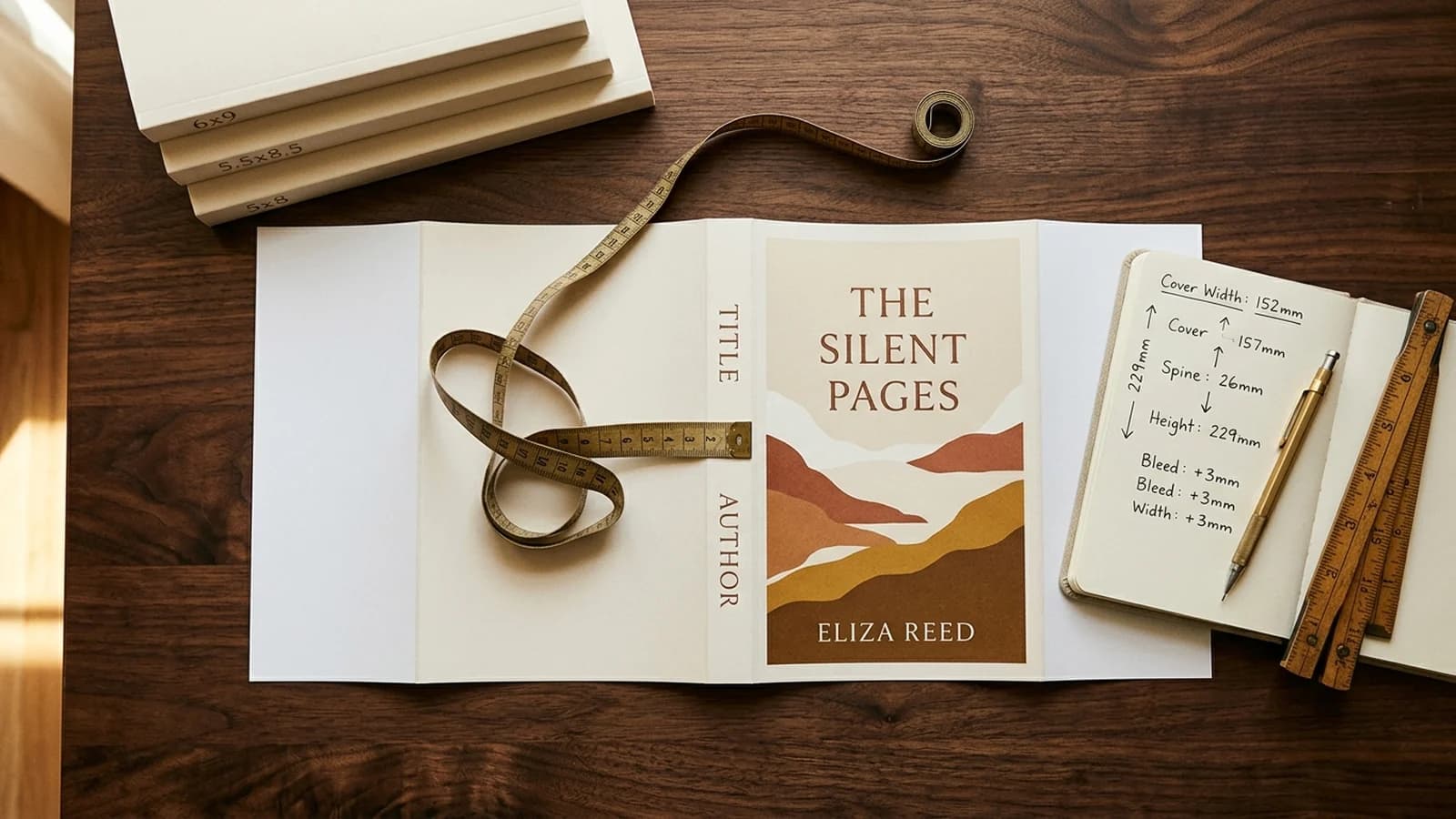
A paperback cover file includes the back cover, spine, front cover, and full bleed on the top, bottom, and outer left and right edges.
Total width = (trim width x 2) + spine width + (0.125 inch x 2)
Total height = trim height + (0.125 inch x 2)
Worked example: 200 pages, 6x9 trim, white paper
- Spine width: 200 x 0.002252 = 0.4504 inch
- Total file width: (6 x 2) + 0.4504 + 0.25 = 12.7004 inch
- Total file height: 9 + 0.25 = 9.25 inch
- At 300 DPI: 3,810 x 2,775 pixels
Spine width per-page thickness
- White paper: 0.002252 inch per page
- Cream paper: 0.0025 inch per page
- Color paper (standard): 0.002252 inch per page
- Color paper (premium): 0.002347 inch per page
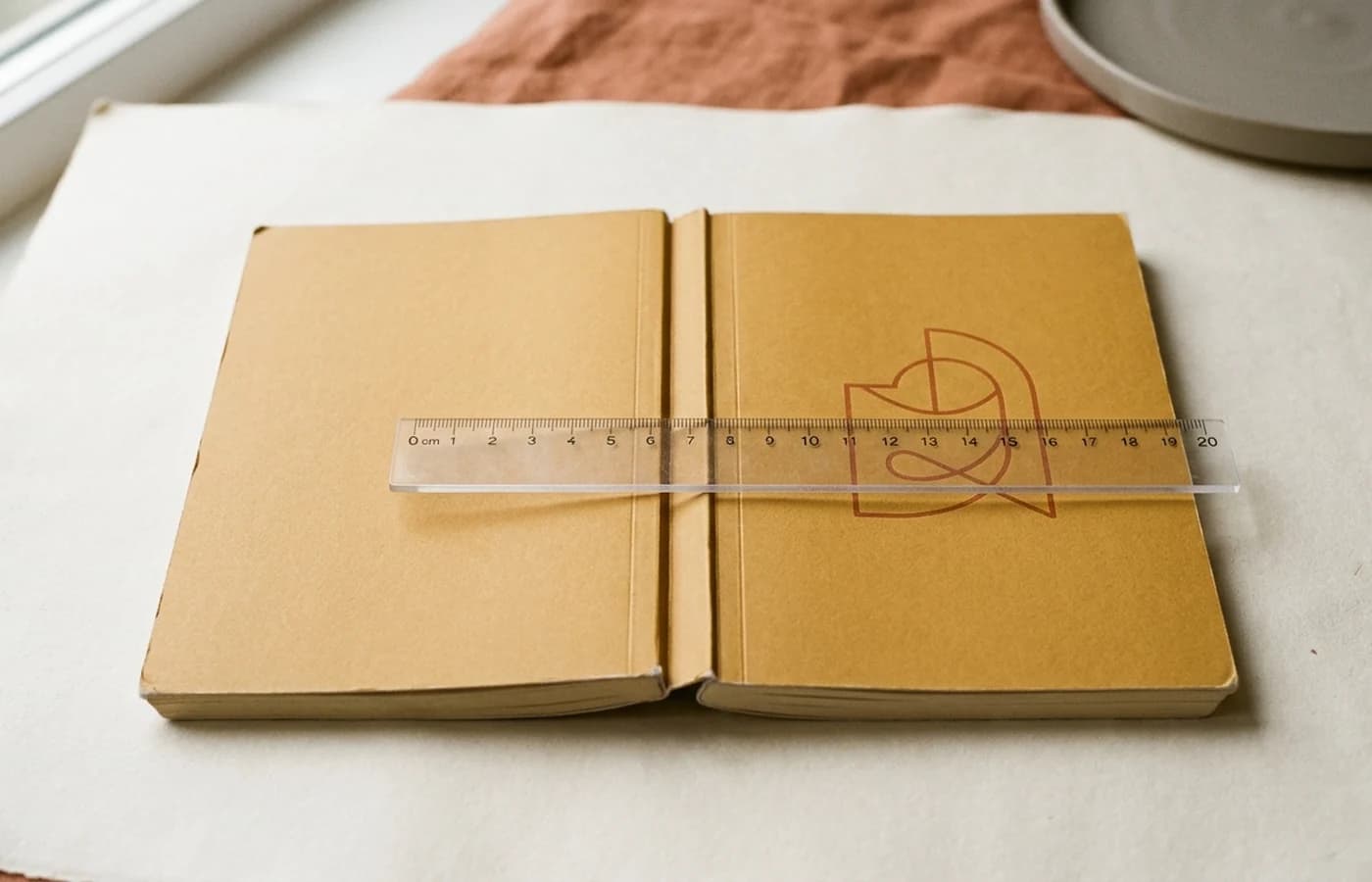
Always calculate spine with the paper type you selected in KDP. Using the wrong paper value is one of the top causes of spine misalignment rejections. If you change paper type after designing, recalculate.
Hardcover dimensions
Hardcover boards are the trim plus 5 mm (0.197 inch) wide and 6 mm (0.236 inch) tall, and a 15 mm (0.591 inch) wrap on each side replaces the 0.125 inch bleed. The wrap folds around the board edges. A 10 mm (0.394 inch) hinge runs down each board next to the spine; keep text off it.
Total width = ((trim width + 0.197 inch) x 2) + spine width + (0.591 inch x 2)
Total height = trim height + 0.236 inch + (0.591 inch x 2)
Hardcover spines are 4.8 mm (0.189 inch) thicker than paperback at the same page count because of the board binding. A 200-page 6x9 hardcover on white paper has a spine of approximately 0.64 inch. Use the official KDP template generator to confirm the exact spine width for your book.
Ebook cover dimensions (2025-2026 spec)
- Aspect ratio: 1.6:1 (height:width). Ideal pixel dimensions are 1,600 x 2,560.
- Minimum size: 1,000 pixels on the longest side
- Maximum size: 10,000 pixels on the longest side
- File size limit: 50 MB
- Resolution: 300 PPI recommended (Kindle Paperwhite and Oasis render high-density)
- Color space: sRGB only
Stop calculating cover dimensions by hand
Enter your trim size, page count, and paper type. Get exact width, height, and spine dimensions for paperback and hardcover at 300 DPI, using current KDP formulas.
Open Cover Size CalculatorResolution and DPI
- 300 DPI minimum for all print covers (paperback and hardcover). This is non-negotiable for print approval.
- 300 DPI recommended for ebook covers. KDP technically accepts 72 DPI ebook covers, but Kindle Paperwhite and Oasis render at 300 PPI. Your cover will look soft on modern devices if you upload lower resolution.
- Rasterize at 300 DPI before export. Do not upscale low-resolution source images.
- Check effective DPI of every placed image. A 72 DPI image stretched across a 300 DPI canvas prints pixelated. Effective DPI = native pixel dimensions divided by physical size in inches.
The effective DPI trap
Your document can be set to 300 DPI while containing images that print at far lower resolution. If you drop a 1,500 x 2,000 pixel photo into a 6x9 inch cover, its effective DPI is 250 x 222, below KDP's threshold. Always check the effective resolution of every placed image before exporting. The blurry cover diagnostic guide walks through this in detail.
Color profiles
Print covers
KDP accepts both CMYK and RGB for print. They convert RGB to CMYK automatically, but the conversion is lossy. Saturated reds, oranges, greens, and deep blues shift visibly. For the closest match between your screen design and the printed book:
- Preferred profile: U.S. Web Coated (SWOP) v2 CMYK
- Alternate for Japanese market: Japan Color 2001 Coated
- Do not use spot colors (Pantone). Convert all spots to process CMYK before export.
- Never use the LAB color space. Flatten to CMYK or RGB only.
Ebook covers
- sRGB required. Kindle devices render in sRGB. Any other profile will render incorrectly.
- Do not embed ProPhoto RGB or Adobe RGB in ebook covers; colors will shift dramatically on the device.
Skip the spec-by-spec compliance work
Generate a print-ready cover with KDPEasy. We enforce dimensions, bleed, spine math, 300 DPI, and CMYK on every export and ship a single PDF straight to KDP.
Generate a compliant coverSafe zones and text positioning
Bleed protects against cutting into your artwork. Safe zones protect text from getting cut off. They are two separate concepts that both matter.
- Text safe margin: keep all text, logos, and critical graphics at least 0.25 inch from the trim edge on every side (top, bottom, outer edges of front and back panels).
- Spine text safe zone: keep spine text at least 0.0625 inch inside each spine fold line to survive normal bindery tolerances of plus-or-minus 0.0625 inch.
- Gutter: KDP does not enforce a gutter on the cover file since the book opens at the interior, not the cover. Still, center critical design elements away from the spine-to-front fold crease.
Spine text minimums
- Under 80 pages (paperback): no spine text allowed. Spine is too thin.
- 80-100 pages: spine text permitted but risky. Expect slight off-center printing.
- 100+ pages: spine text renders reliably when following the 0.0625 inch safe margin.
- Hardcover under 75 pages: typically not produced at all; KDP requires minimum interior content for hardcover.
Fonts
- Embed all fonts in the PDF. KDP's automated check flags any unembedded font as a rejection trigger. In InDesign, this is automatic with the PDF/X-1a preset. In Photoshop, rasterize text layers before flattening.
- Outline fonts for safety if you are using rare typefaces. Converting text to outlines removes any font-loading risk at KDP's printer end.
- Avoid .otf in older compilers. If you are exporting from older versions of Canva, Affinity, or Acrobat, .otf fonts occasionally fail to embed. Use .ttf when possible.
- Do not use fonts below 8 point on the back cover or spine. They will render unreadable on print at typical viewing distance.
- Subset embedding when characters used is under 100% saves file size without breaking embedding. Most PDF export tools do this automatically.
File size limits
- Print cover maximum: 650 MB
- Ebook cover maximum: 50 MB
- Typical print cover size: 5-30 MB after proper flattening
- Typical ebook cover size: 200 KB - 5 MB
If your file is approaching the 650 MB cap, you have unflattened transparency, embedded high-resolution originals, or un-downsampled images. Flatten all layers, downsample images above 300 DPI to exactly 300 DPI, and re-export. Files over 200 MB also slow KDP's review process, so leaner is better even if you are under the limit.
Barcode zone
KDP adds a free barcode automatically in the bottom-right of the back cover. The barcode occupies a 2 inch x 1.2 inch area with white space around it.
- Do not place text or artwork in this region.
- Position: bottom-right corner of the back cover, 0.25 inch from each edge.
- If your design places text in this area, KDP will either reject the cover or overlay the barcode on top of your text.
- White rectangle placeholder: place a plain white 2 x 1.2 inch box in your design file where the barcode will go. This ensures KDP can place the barcode cleanly without color-edge artifacts.
- If you supplied your own ISBN, you can either let KDP generate the barcode (recommended) or disable auto-barcode in publishing settings and include your own barcode at the same 2 x 1.2 inch position.
Copyright and trademark rules
Content restrictions are enforced at review and post-publication. Violations after publication can result in account suspension.
- No Amazon logos or Amazon branding anywhere on the cover.
- No stock photos you do not have a license for. Free images from Pexels and Unsplash are acceptable under their licenses; paid stock requires a documented license you can produce on request.
- No celebrity likenesses without written consent (even for biographies).
- No real brand names visible (Coca-Cola bottles, Nike logos, Disney characters, etc.).
- No URLs or website addresses on the cover or back cover. Author websites can go on the interior copyright page only.
- No trademarked terms used as titles (Netflix, Amazon, Kleenex, etc.) unless you own the trademark.
- No public domain claims on the cover without accurate attribution.
AI-generated cover policy (2025-2026)
KDP does not prohibit AI-generated cover art, but it does require disclosure during publication setup. The cover content type dropdown offers three options:
- AI-generated: the cover was created by an AI tool with minimal human editing.
- AI-assisted: AI was used for ideation, upscaling, or as a starting point, but the final cover was significantly edited or composed by a human.
- Not AI-generated: the cover was created without AI tools.
Failing to disclose can result in a title being delisted. KDP also enforces all standard copyright and trademark policies on AI art the same way it does for human-created art, so do not generate covers featuring celebrities, trademarked characters, or recognizable brands. Disclosure does not affect search ranking or visibility.
KDP review process
KDP runs two layers of review. The first is automated; the second is human.
Automated checks (run within minutes)
- Dimension match against calculated spine and trim
- Bleed present on all four outer edges
- File format and color profile valid
- DPI threshold met (document level)
- Font embedding verified
- Barcode safe zone clear
Human review (triggered on flag)
- Copyright, trademark, and content policy violations
- Quality concerns on flagged covers (blur, poor design execution)
- Spine alignment accuracy on edge cases
- Cover appropriateness for category
- AI content disclosure mismatch (cover obviously AI but disclosed as not)
Review timelines
- Kindle ebook cover: 24-48 hours
- Paperback cover: 72 hours (often faster, 12-36 hours in practice)
- Hardcover cover: 5 business days
- Reupload after rejection: typically 2-3 business days
- Holiday weeks (late November - early January): all timelines run roughly 50% longer
Most common rejection reasons
In no particular order. These are the issues we see flagged most often across indie author submissions. There are no public KDP statistics on rejection rates, so treat these as directional, not quantitative:
- Spine width miscalculation: using the wrong per-page paper value, or switching paper type without recalculating.
- Insufficient bleed: exporting without the 0.125 inch bleed on all four edges.
- Low effective DPI on placed images: document is 300 DPI but placed photos upscale to sub-300.
- Text inside the trim safe zone: titles or author names cut off after trimming.
- Fonts not embedded: common with old Canva exports and .otf files in outdated software.
- Barcode zone occupied: design text or artwork behind where the barcode auto-places.
- Unlicensed stock imagery: celebrity photos, paid stock without license on file.
- Trademark violations: visible logos, brands, or franchise references.
- Spine text under 80 pages: the book is too thin to render spine text.
- Color profile mismatch: LAB or spot colors submitted instead of CMYK or RGB.
The 15-step pre-flight checklist
Work through every item before you hit upload. This is the single most effective thing you can do to avoid rejection.
Dimensions and structure
- 1. Exact trim size matches your KDP dashboard setting (6x9, 5.5x8.5, etc.)
- 2. Spine width calculated against the current paper type you selected
- 3. 0.125 inch bleed present on all four outer edges (top, bottom, left, right)
- 4. Hardcover only: 15 mm (0.591 inch) wrap on all four edges (in place of bleed)
- 5. Total file dimensions verified against KDP template generator output
Resolution and color
- 6. Document set to 300 DPI
- 7. Every placed image verified at 300 DPI effective resolution
- 8. Color profile: CMYK SWOP v2 for print, sRGB for ebook
- 9. Spot colors converted to process CMYK
Text and fonts
- 10. All text inside the 0.25 inch trim safe zone
- 11. Spine text inside 0.0625 inch safe margin (or removed for under-80-page books)
- 12. All fonts embedded in PDF; rare typefaces outlined for safety
Export and content
- 13. PDF/X-1a:2001 preset, transparencies flattened
- 14. File size under 650 MB for print, 50 MB for ebook
- 15. Final visual review at 400% zoom; barcode zone clear; no copyright violations
Paperback vs hardcover vs ebook: quick reference
| Requirement | Paperback | Hardcover | Ebook |
|---|---|---|---|
| File format | PDF, JPG, TIFF | PDF, JPG, TIFF | JPG, TIFF |
| Bleed | 0.125 inch all sides | None (wrap replaces bleed) | None |
| Wrap area | N/A | 15 mm (0.591 inch) all sides | N/A |
| Single file | Front + spine + back | Front + spine + back | Front only |
| DPI minimum | 300 | 300 | 72 (300 recommended) |
| Color space | CMYK or RGB | CMYK or RGB | sRGB |
| Review time | 72 hours | 5 business days | 24-48 hours |
| File size limit | 650 MB | 650 MB | 50 MB |
KDP Print Previewer: what it catches (and what it doesn't)
After you upload your cover, KDP renders it inside the Print Previewer. The previewer overlays your file against a trim-and-bleed guide and flags most dimensional problems. It is the single best tool you have for catching errors before final review.
What Print Previewer catches
- Dimension mismatches (spine miscalculated, bleed missing)
- Text inside the trim safe zone
- Barcode overlap with design elements
- Obvious low-resolution imagery
- Spine text extending past safe margins
What Print Previewer does NOT catch
- Copyright violations (stock license, brand logos)
- Color shift from RGB-to-CMYK conversion (you see the RGB render, not the printed output)
- Subtle font embedding failures that trigger later in review
- Image quality degradation from flattening
- Content policy issues (celebrity likeness, misleading claims)
A green Print Previewer is a necessary condition, not a sufficient one. Still review the proof copy (digital or physical) before making the book live. KDP offers free digital proofs and low-cost printed proofs shipped to you. Use both for any book you care about.
Ordering a physical proof
After your cover passes review but before you hit publish, order a physical proof copy. KDP charges print cost plus shipping; no royalty is applied because it is a proof. A 200-page 6x9 paperback proof costs approximately $3.40 plus shipping to your address.
In the proof, check:
- Spine text alignment against the actual spine fold
- Color shift from your design software to the printed book
- Barcode placement and readability
- Cover finish (matte vs glossy, set in publishing options, not the file)
- Text sharpness at body-copy size
- Image detail at the far edges of the bleed
If your cover gets rejected
Read the rejection email carefully. KDP is specific about which issue triggered the rejection and usually cites the exact dimension, page, or element. Then:
- Fix the specific flagged issue. Do not rework the whole cover.
- Re-run through the pre-submission checklist above.
- Re-verify with KDP's template generator for your exact spine and trim.
- Re-export with the same settings (PDF/X-1a, 300 DPI, fonts embedded).
- Upload and check Print Previewer for the specific flagged area.
- If the rejection repeats, contact KDP support with screenshots. They respond within 24-48 hours for cover issues.
Design software export settings that work
Most rejections happen at the export step, not the design step. Here are the settings that survive KDP's automated review in the major tools.
Adobe InDesign
- Export preset: PDF/X-1a:2001
- Compression: Bicubic downsampling to 300 DPI for images over 450 DPI
- Marks and Bleeds: 0.125 inch bleed, no crop marks or trim marks
- Output color: CMYK, Destination = U.S. Web Coated (SWOP) v2
- Include fonts: Subset fonts when percent of characters used is less than 100%
Adobe Photoshop
- Mode: CMYK Color, 8 bits/channel
- Profile: U.S. Web Coated (SWOP) v2
- Resolution: 300 pixels per inch at final dimensions
- Save as: Photoshop PDF with PDF/X-1a preset
- Flatten image before saving to avoid layer-related export issues
Affinity Publisher / Designer
- Export preset: PDF (for print)
- Raster DPI: 300
- Color space: CMYK, U.S. Web Coated (SWOP) v2
- Bleed: Include Document Bleed, 0.125 inch
- Include Spots: No (convert all spots to process)
Canva
- Size: use KDP's exact pixel dimensions from their template generator, not Canva's preset book sizes
- File type: PDF Print
- Crop marks and bleed: enabled
- Color profile: CMYK (Pro plan required)
- Flatten PDF: enabled
- Common issue: Canva sometimes fails to embed custom uploaded fonts. Verify with a PDF inspector before uploading.
Ebook cover details often missed
Ebook covers get less attention than print covers because they seem simpler. A few nuances that trip up authors:
- The 2:3 aspect ratio myth. Some guides say 2:3. The current KDP spec is 1.6:1 (height:width), which is the same as 8:5. The ideal 1,600 x 2,560 pixel dimensions reflect this.
- Thumbnails are your primary display. Most readers see your cover at 160 pixels wide in Amazon search results. Design for legibility at that size. Title and author name must be readable when shrunk to a thumbnail.
- Avoid white backgrounds. White ebook covers blend into Amazon's white UI. Authors who switch from white to dark or colored backgrounds typically see a 10-20% click-through lift in ad performance.
- No text above 48 point on a thumbnail-scale design. Oversized title text looks amateur at thumbnail scale. Keep title text proportional to the cover canvas.
- sRGB, always. Adobe RGB or ProPhoto will render colors wrong on Kindle devices. Convert to sRGB before export.
Special cases: artbooks and illustration-heavy covers
Illustration-heavy and artbook covers follow the same technical specs as standard covers (300 DPI, bleed, CMYK profile, font embedding) but require even tighter image quality control because the cover often sets the aesthetic for the entire book.
- Work in lossless formats (PSD, TIFF, PNG) throughout. Avoid JPG until final ebook export.
- For art prints reproduced on the cover, scan or photograph at 600 DPI native to give a sharpening buffer.
- Apply CMYK conversion before final color grading, not after. The gamut shift changes how saturation reads.
- For illustration on a textured background, use the "Art" or "Illustration" AI upscaling model rather than the photo model. The photo model on illustration produces plastic-looking output.
- KDP scrutinizes color accuracy and detail fidelity on artbook submissions and will flag covers where image quality on the cover is noticeably lower than interior plates. Cover quality must match interior quality.
What happens after approval
Cover approval is not the end. KDP can re-review and pull your cover at any point after publication if a complaint comes in or an automated compliance scan flags it. Common post-publication flags:
- A rights holder files a trademark or copyright claim.
- A customer reports misleading cover art (cover does not match content).
- An automated re-scan detects newly-indexed licensed imagery.
- The book category changes and the cover becomes inappropriate for the new category.
If your book gets pulled after publication, the fix is the same: review the specific complaint, update the cover, re-upload, and submit for re-review. The book stays live during the process unless KDP specifically suspends the listing.
Re-export a rejected cover with higher fidelity
Our AI upscaler cleans up low-resolution source images before export, bringing them to true 300 DPI without the upscaling artifacts that trigger KDP rejection flags.
Open the upscalerOne more pass before upload
Rejections almost never come from creative decisions. They come from technical ones. Spine math, bleed math, DPI, fonts, color profile, barcode zone. Every item on this checklist is something you can verify before hitting upload, in about 15 minutes of careful review.
A cover that passes review on the first try saves a week of launch delay. Spend the 15 minutes.
A FEW MORE ANSWERS
Frequently asked questions
For paperback and hardcover: PDF (preferred), JPG, or TIFF; 300 DPI minimum; 0.125 inch bleed on all four outer edges; CMYK preferred (U.S. Web Coated SWOP v2) but RGB accepted; PDF/X-1a:2001 export preset; all fonts embedded; 650 MB maximum file size; spine width calculated from page count multiplied by per-page paper thickness. For Kindle ebook: JPG or TIFF only (no PDF); 1.6:1 aspect ratio (ideal 1,600 x 2,560 pixels); sRGB color space; 50 MB maximum.

ABOUT THE AUTHOR
Danielle Okonkwo
Marketing & Growth Lead at KDPEasy. Danielle is a published author with 12+ titles on Amazon KDP and a former book blogger. She draws on hands-on publishing experience and years of testing what works in the KDP marketplace.
Meet Danielle